
How to Use MovieBox Without Creating an Account?
MovieBox is an excellent platform for anyone looking to stream or download movies and shows for free. With its massive content library, it gives free access to thousands of content without subscription fees. It provides a full HD streaming experience, and users have complete control to manually adjust video resolution, enable/disable subtitles, switch audio language and more.
Now, have you installed it on your device but can’t figure out how to get started? In this guide, you will get to know everything from installing and launching the app to customizing settings and exploring its amazing features.
About MovieBox
MovieBox is an independent online subscription-free streaming platform that is compatible with a vast range of devices, and using it will give you access to a massive content library that goes beyond your expectations and lets you stream or download movies, series, anime, and TV shows in HD. It is easy to use and beginner-friendly; anyone can easily adapt to this app. It has a personalised home feed that suggests movies and shows based on individual interests and favourite genres to let you easily discover worthy-to-watch content.
How to Use MovieBox to Watch Movies?
MovieBox is a pretty straightforward application, so once you install it, configuring it is quite simple, as you don’t need to create an account, so you can simply launch the app and start watching your favourite movie. For rookies, here we have mentioned a detailed step-by-step guide that is quite helpful for first-time MovieBox users
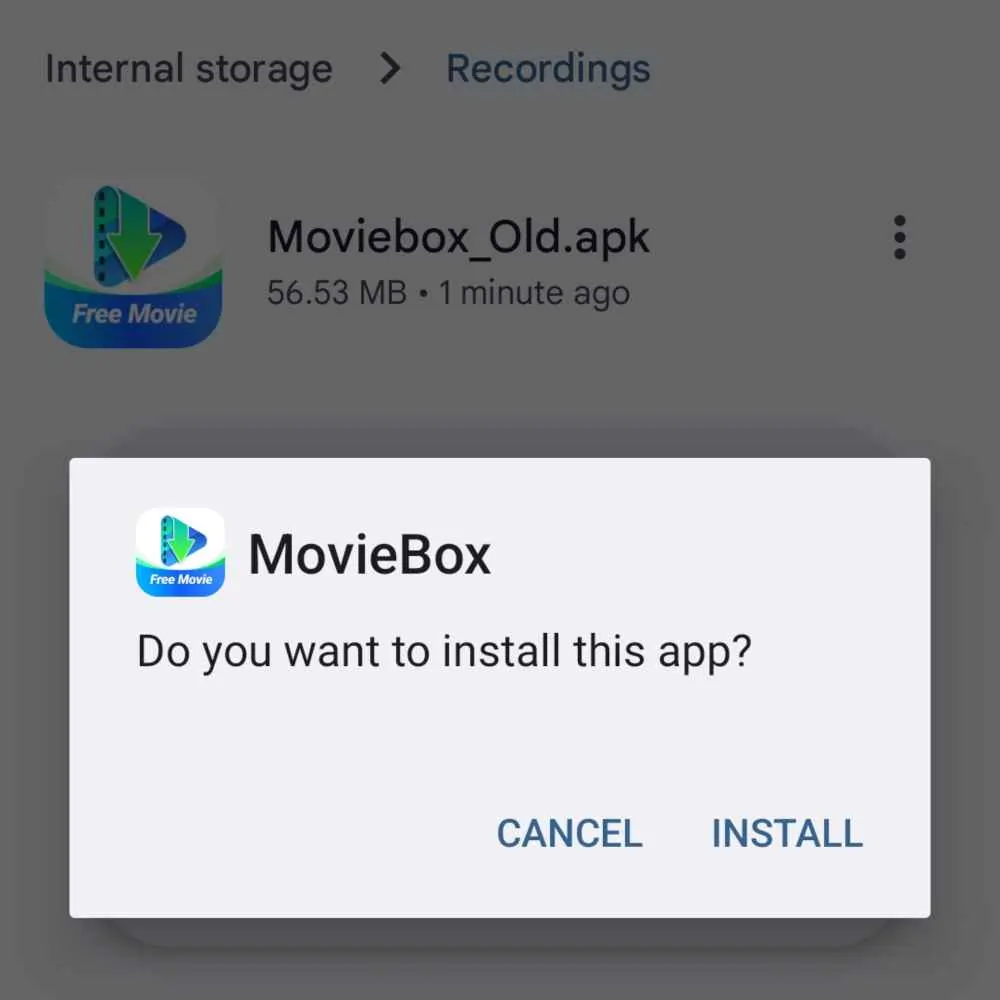
Step 1: Download and Install MovieBox App
- Go to the official website of MovieBox (MoviesBox.vip) and download the MovieBox APK file.
- Enable “install from unknown sources” in your device’s settings.
- Now, locate the MovieBox APK file and click on it to install the app.
- After installing it completely, tap on the app icon to launch it.
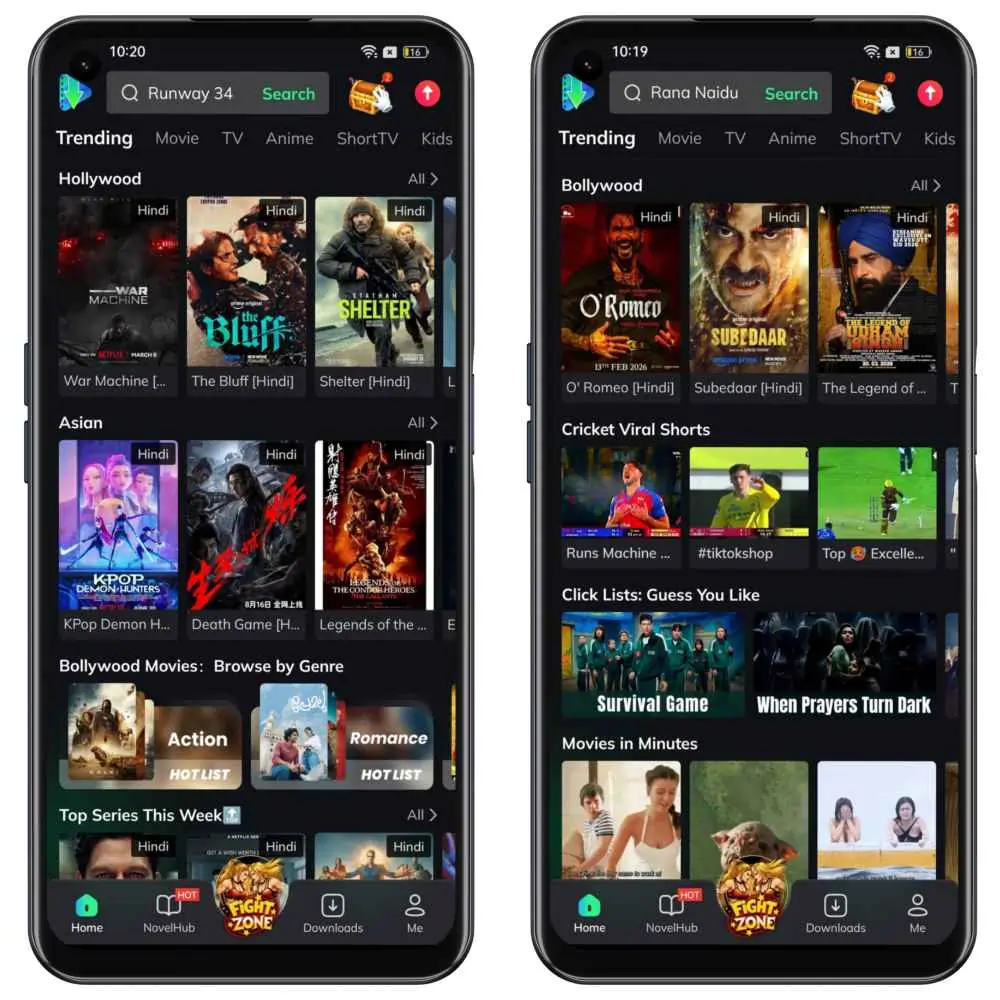
Step 2: Open the App and explore the home feed
While opening the app, you will see a clean and simple home screen, where you will find:
- Trending: Most recently released movies and shows are added.
- Movie: Browse a full-length movie library from all genres.
- TV: Explore TV series and shows with all episodes neatly orgaznied.
- Anime: Watch your favourite anime titles.
- Short TV: Short videos that are mostly in vertical video format.
- Live: Watch live sports matches and events.
- Western: Movies and series from Europe, the US and South America.
At the bottom of the screen, you will see five main options:
- Home
- NovelHub
- BuzzBox
- Downloads
- Me
Step 3: Explore a wide range of content
Tap on home and see a wide range of available content across genres and languages, so scroll down to explore more interesting movies and series. You can use the built-in search bar on the top right to search for a specific movie title that you want to watch. The search bar has many filters to narrow down your search and locate desired content instantly.
Step 4: Play a Video
- Tap on any movie or show you would like to watch.
- Tap on the play button to start streaming the content.
- Maximize the media player to play video in full-screen mode.
- Tap on the gear icon inside the media player.
- Select video quality up to 1080p.
- Enjoy watching the shows.
Step 5: Use the Media Player
MovieBox has a built-in media player with beneficial tools:
- Adjust video quality.
- Enable or disable subtitles.
- Crop, stretch or fit video to the screen.
- Adjust brightness and volume.
- Enable auto miniplayer.
- Adjust video speed.
- Pause, resume, or forward.
- It is very simple and easy to control.
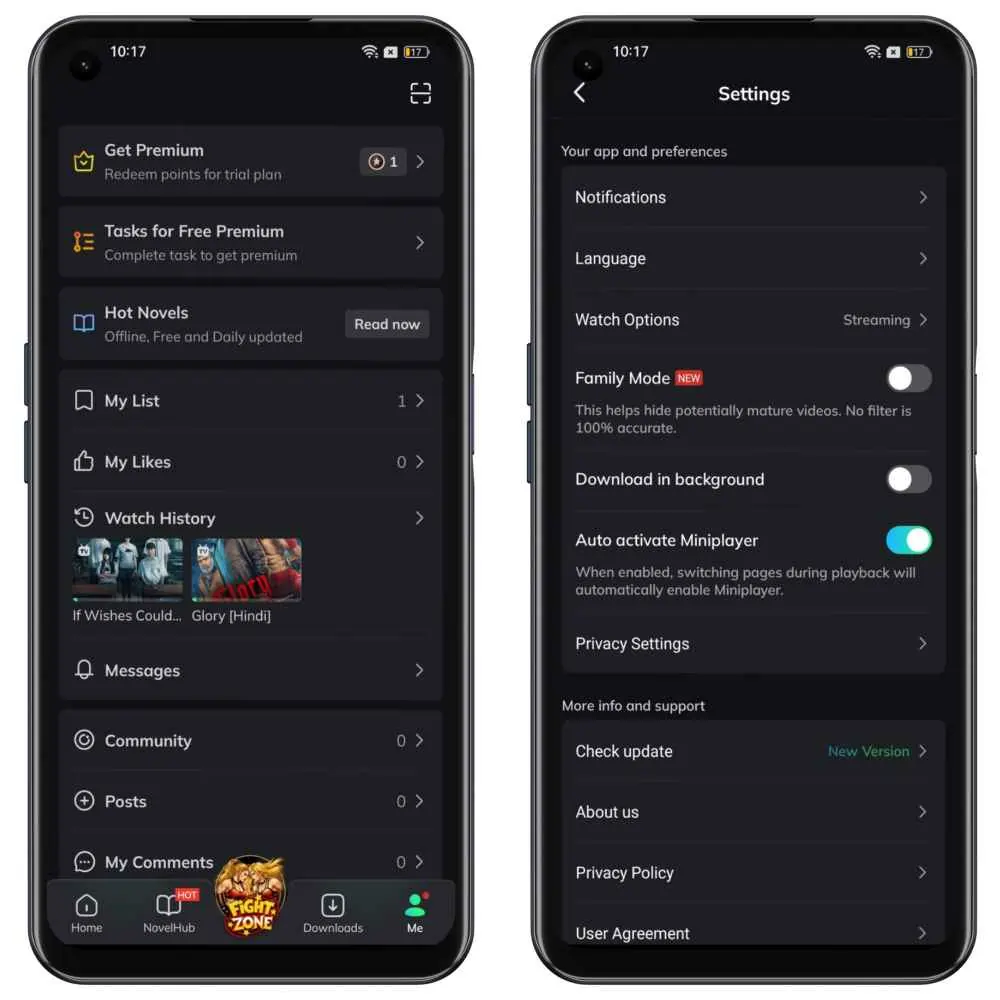
Step 6: Customize in Settings
In the settings of the MovieBox App, you can:
- Enable Family mode to filter and hide inappropriate content to make the app safe for kids and appropriate when using it around family.
- Adjust watch options and make sure to enable both Streaming and Download to get both features accessible within the app.
- Select your preferred language and your chosen language will be set as the default language for app UI, audio and subtitles.
- Tap on the Check updates to find if there is any update available to ensure you’re always using the latest version of this app.
Easy Guide to Download Videos from MovieBox App
Make sure you have a fast and stable internet connection while downloading the videos for quick download, because movies are usually larger in size and enough storage space is required to access this feature.
- Launch the app and search for the movie or series you want to download
- Tap on the Download button provided right next to the share button
- Choose the desired audio language
- Select the episode and then the video quality
- Finally, click on the Download button to start the downloading process.
- Go to the Downloads section in the app to check the progress and wait till the download is finished.
All About Subtitle Settings
- Subtitle: On the video player screen, tap on the language option to see multiple options for subtitles. Select the preferred language to enable the on-screen subtitles. If any of your favourite languages are not available, you can download subtitles for your preferred languages by yourself without leaving the app.
- Subtitle Style: You can adjust subtitle style by changing font size, font colour, position, shadow, and text background. When you tap on the Language option inside the media player, the Style option shows on the screen to get all the tools to customize the subtitle appearance to make it more clearly visible and give it a little personal touch.
- Subtitle delay: If the video and the subtitles are not synced properly, then you have the option within the MovieBox app to adjust subtitle delay by tapping plus(+) and minus (-) icons to adjust subtitle timing and delays in order to sync with the video properly.
How Can I Cast MovieBox to the TV Screen?
Here is a short guide to easily understand the right way to cast the MovieBox app to your TV screen.
- Connect your phone and TV to the same Wi-Fi network.
- Open the MovieBox app on your phone and start streaming a movie.
- Play the video in full-screen mode, then tap on the Chromecast icon inside the media player.
- It will start loading to check for nearby devices and show your TV model name.
- Choose your TV or casting device when it appears. When it is connected, the cast button will turn solid.
Conclusion
MovieBox is a complete entertainment hub and is simple to use. Whether you want to stream, download, or cast videos to your TV. It offers content for all age groups. Stream and download your favourite content in multiple high-resolution options, such as 480p, 720p and up to 1080p. Once you get to know about the amazing features of MovieBox, you will never want to go anywhere ever again.
